Use Claude, ChatGPT, Codex, Cursor, Muse, Kimi, Grok, Qwen, or Grok Bot? Find out which sites your agent can already use, so you skip repeat logins and password typing. Start with one copy-and-paste prompt and a test on one site.
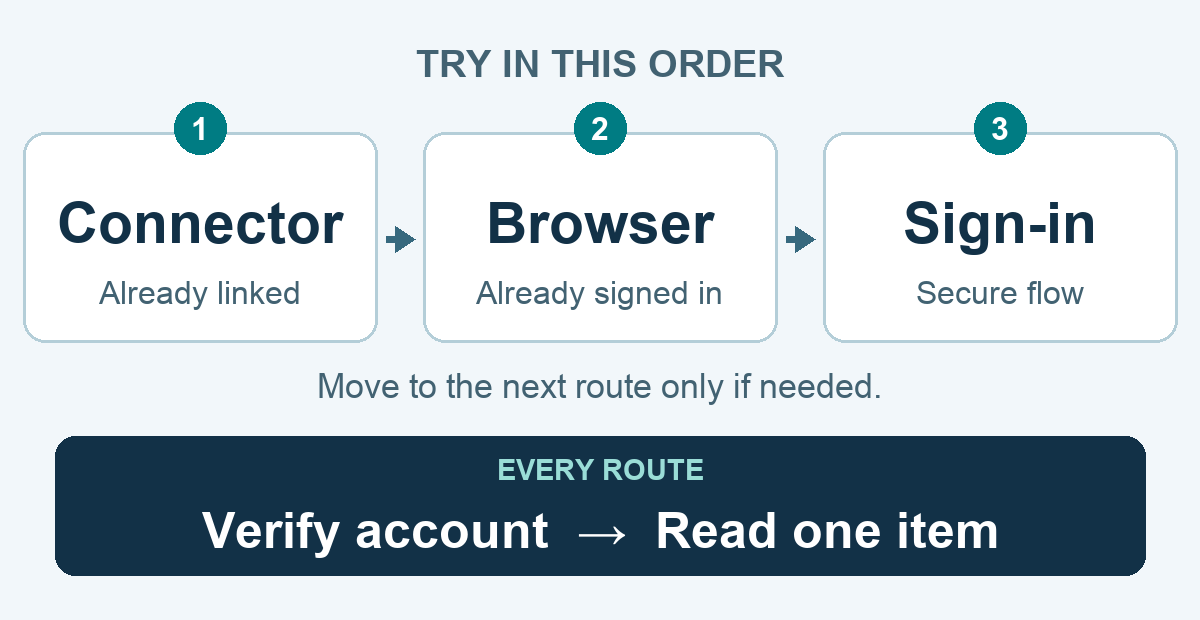
What can I try right now?
Copy this into your agent and replace the brackets. It checks what already works. If your app needs setup, follow its section below.
Read [one page or file] on [website] using [account label]. First check an existing connection, then a browser where I am already signed in. Use only tools this app supports. Check that it is the right account, test one harmless read, and tell me whether it worked. If something is missing, ask for just that step. Do not ask me to paste passwords or cookies.
I was spending too much time signing agents into the same tools. The useful starting point is where each agent does its work. A helper on your computer may be able to use your open browser. A helper running on a separate cloud computer may need its own connection.
That difference determines the setup. Switching models inside one app does not necessarily change its browser access. Switching apps or computers may. This is the access check that belongs alongside how I give agents shared skills.
What can agents actually share?
A saved password helps you sign in. A browser session is the site’s record that you are already signed in, often maintained with cookies. A connector is an app’s supported connection to another service.
An agent may use a signed-in browser through a supported extension without receiving a copy of your password collection. A native browser import is a separate feature, with its own list of data it can transfer. Importing passwords does not establish that every website is already signed in.
The setup below follows the published reuse-agent-access skill. Product details were checked on September 21, 2026; use the linked instructions for your current build.
1. Which app and account will do the work?
Start with one task and one website. Have the agent identify:
- The app doing the work and whether its tools run on your computer or in the cloud.
- The browser profile or connector it will use.
- The intended account and the specific information you want it to read.
A browser profile is the separate space for one set of browser accounts and settings. An extension installed in your personal profile does not prove it can reach a work account in another profile.
Ask for a small check, such as opening the intended project dashboard and reporting its heading. Avoid a request to inventory every account. You need enough information to start the job.
2. Does an existing connection already solve the task?
Have the agent inspect the tools available in that task. If an authorized connector can retrieve the needed document or record, test that first. Browser setup may be unnecessary.
If it needs the website itself, select a supported bridge to the intended signed-in browser. A bridge is the connection that lets the agent operate that browser. Use a separate task tab so it does not disturb your work.
When neither route works, inspect the app’s native import or secure sign-in flow. Check the source profile, destination, and offered data categories. Keep the resulting session for later tasks when the product supports it.
Do not troubleshoot by pasting passwords or cookies into a prompt. Use the product’s login screen, password-manager interface, or browser takeover. A fresh security check from the service still needs to be completed.
3. How do I connect ChatGPT desktop to Chrome?
For supported ChatGPT desktop versions, OpenAI documents an extension that can work with websites where you are already signed in.
- Update the desktop app and open Settings → Computer Use.
- Select Chrome and follow the setup prompts for the required plugin and browser extension.
- Install the extension in the Chrome profile you intend to use.
- Return to Computer Use and confirm Chrome shows Manage.
- Start a ChatGPT Work or Codex task, select Chrome through the @ menu, and request your small read test.
Availability can depend on rollout and workspace settings. Follow OpenAI’s browser extension setup if the controls differ.
The ChatGPT cloud browser uses a separate session and secure sign-in flow. It does not use your device browser’s cookies. Atlas browser setup documents importing passwords, bookmarks, and history; that list does not promise cookie transfer or configure your other agent apps.
4. How do Cursor and Kimi reuse browser access?
Cursor offers a built-in browser whose saved state persists by workspace. Different workspaces have separate storage. If that browser is already signed into the right account, test it before adding another tool. See Cursor’s browser session documentation.
For a compatible local agent that needs your existing Chrome or Edge session, Kimi Browser Extension provides another route. It was previously called WebBridge. Kimi’s setup guide lists Cursor, Codex, Claude Code, and Kimi Code among its supported local agents.
Use Kimi’s official setup guide for both parts of the connection:
- Install Kimi Browser Extension in the Chrome or Edge profile already signed into the site.
- In Kimi Work, open Work mode → plugin marketplace and install the Kimi Browser Extension plugin. For a local agent such as Cursor, follow the guide’s local-agent setup instead; this connects the extension to the local companion service.
- In Cursor, make sure the official
kimi-webbridgeskill is installed where Cursor can discover it. Its user skill folder is~/.cursor/skills/. See Cursor’s skill instructions. - Open a fresh agent task, invoke the installed skill, and request the small read test. Reuse an existing working companion service before installing another copy.
Confirm the extension connects, then test the intended website. A connected extension alone does not establish a working site login. The browser sidebar, Kimi Work, and a plain web chat are different ways of using Kimi; check which one your instructions configure.
5. What changes for Qwen, Muse, Grok, and phones?
Qwen inside another app: inspect that app’s tools. A Qwen model used by a host application can only use the browser tools the host exposes. Installing a second agent app is unnecessary if the existing host already provides a working route.
Qwen Code: its Browser Use feature can use existing Chrome tabs and sessions. The current instructions require macOS or Linux, Chrome 125 or later, and the Qwen Chrome extension. The extension currently needs to be built and loaded unpacked; the documentation says there is no Chrome Web Store listing yet. Follow that guide if you are actually using Qwen Code.
Muse: Meta documents a persistent cloud computer, connected services, and a secure credential interface that keeps actual passwords outside the agent. Use existing connections first, then the secure sign-in flow. The Muse security design explains this separation. Its current product page describes 1Password integration as coming soon. That is not a setup step available to promise today.
Grok and Grok Bot: Grok has supported service connectors. Grok Bot documents browser access on its computer, with sessions retained across your Bots. Check the selected computer and use the Grok Bot browser instructions. These sources do not establish a universal Chrome password or cookie import.
iPhone and iPad: a phone may control an agent whose tools run elsewhere. Establish where the browser runs before trying to configure it. A desktop extension guide does not install that extension into an iOS app, and password synchronization does not prove another app has the same signed-in session.
6. How do I know the setup worked?
Use three separate checks:
| Check | What must be true |
|---|---|
| Connected | The agent can reach the connector or browser. |
| Right account | The intended account or workspace is visible. |
| Read tested | The agent retrieved the specific information requested. |
Save a short note in your existing private setup record: app, route, account label, permitted task, date, result, and any remaining action. Keep credentials and page contents out of it.
Start a fresh task and repeat the same small read. This checks whether the next task can find the instructions and reuse access. One successful website establishes that result for that website; repeat the check for other services as you need them.
If a check fails, name the failed step. “The extension connects, but this profile is signed out” tells you what to fix. Repeating “please give me access” does not.
7. How do I teach this to the next agent?
The maintained files live in the Local Service Spotlight skills repository. The access skill is included in lss-everything and client-operations. Our plugin setup explanation shows how the package relates to the skills it contains.
For an app with local skill support, give its agent this installation request:
Read the public reuse-agent-access skill at https://github.com/dennisyu/local-service-spotlight-skills/tree/main/skills/reuse-agent-access. Install or update that skill and its references in this app’s supported user skill folder. Preserve my other instructions. Report the source revision and the installed location, then tell me how to invoke it in a fresh task. Do not install new browser access or request credentials as part of this instruction-only step.
For Cursor, the folder should end up as ~/.cursor/skills/reuse-agent-access/, with SKILL.md and its references directory inside. A local skill directory is a configuration path, not a place to store passwords. For other supported apps, start with the community installation guide and use that app’s documented method.
If the app cannot install skills, put the short rule below in its supported reusable instructions or project instructions. Some chat apps only retain it within the current conversation. Refresh an existing copy rather than creating conflicting versions, and use a fresh task to confirm discovery. Pasting a link does not automatically install anything.
Before asking me to log in, check an existing authorized connector, then the intended signed-in browser through a supported tool. Identify the app, computer, profile, and intended account. Verify one harmless read. If a separate browser needs sign-in, use its secure flow and ask only for the missing step. Keep credentials out of prompts and files. Existing access does not authorize new actions, sites, or permissions.
After loading the skill, replace the brackets in this prompt:
Use reuse-agent-access for [website] and [specific read]. Identify the app and computer running your tools. Check an existing authorized connector or signed-in browser before requesting another login. Verify the intended account and perform that read. Report which skill revision loaded, the route used, the result, and any exact step still needed. Keep credentials and the access record private.
Hand the checked setup back to whoever owns the actual job. They can now ask the agent to do that job using the verified route. Keep the reusable instructions in the shared source, update the private setup note when access changes, and test discovery again after a tool or app update.
If you are setting up your first agent team, begin with New Agents Start Here. For the rules around who may use an account and for what work, read the shared access standard. The result you want from this guide is simple: one tested route for a real task, plus instructions the next agent can find.
Originally published .